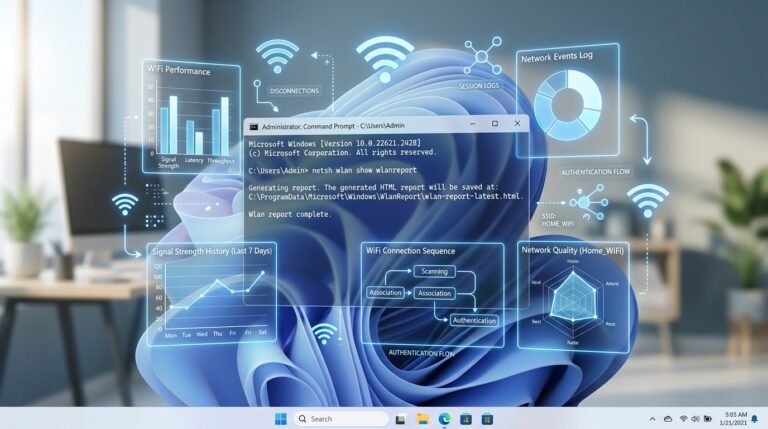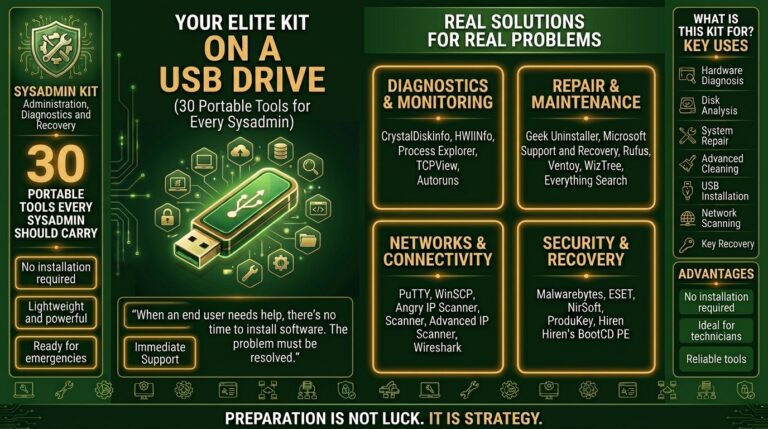

Often we find that our PC is incredibly slow and we don’t know what to do. We look for apps, but many are paid and don’t help at all. Today I’ll explain how to diagnosing a slow PC PC and which tools to use completely FREE to get your PC working properly
This is how you keep your PC stable and running properly. Pay close attention to everything I explain, because if you follow it step by step, your PC will improve.
Here’s how to diagnose the problem step by step using free tools.
First, start by checking your system’s resource usage. Open the Task Manager by pressing Ctrl + Shift + Esc. This will show you which applications are consuming the most CPU and memory. If you see any programs acting like hogs, consider closing them or uninstalling if they’re unnecessary.
Using Free Tools for Diagnosing a Slow PC
Next, get a look under the hood with some free diagnostic tools. Applications like CCleaner can help you clean up temporary files and system junk that can slow down your PC. Install it, run the cleaner, and see how much space you can free up. But remember, the catch is, CCleaner has some features that might not be entirely necessary, so don’t get too trigger-happy.
Another handy tool is HWMonitor which checks the health of your hardware. It provides vital stats on your CPU, GPU, and system temperatures. Overheating can throttle performance, so if you notice temperatures rising into the danger zone, it could indicate poor cooling or dust buildup inside your case. Regular cleaning and ensuring good airflow can help mitigate this.
Don’t forget your drivers. Outdated or corrupted drivers can lead to performance issues. Use Driver Booster to scan for outdated drivers and update them. Just a heads up, though: your mileage may vary with driver updates, so make sure to create a restore point before diving in.
Finally, consider the possibility of malware. Use a reputable free antivirus solution to run a full system scan. Malware can sap your system’s performance without you even realizing it. I’ve seen machines struggle to do anything productive when they were bogged down by viruses.
In practice, after you’ve followed these steps, you should notice a significant improvement in your PC’s performance. However, if your system is still lagging despite these efforts, it might be wise to consider hardware upgrades or even a clean OS install as a last resort. Bottom line: diagnosing a slow PC often involves a mix of software tweaks and hardware considerations. Keep your system clean, updated, and watch for performance drains!