

Looking to Optimize Windows 11? You’re not alone. Many users want their PCs to run smoothly, from startup to shutdown. In this comprehensive guide, I’ll take you through the steps to enhance your system’s performance.
1. Check for Windows Updates
First things first, make sure your system is up to date. Microsoft regularly rolls out updates that fix bugs and improve performance. To check for updates, go to Settings, then Windows Update, and click Check for updates.
2. Manage Startup Programs
Too many applications launching at startup can slow down your boot time. To manage these, right-click the taskbar, select Task Manager, and navigate to the Startup tab. Disable any unnecessary programs, but leave your antivirus running.
3. Adjust Visual Effects
Windows 11 comes with a slew of visual effects that, while appealing, can impact performance. To tweak these settings, go to Settings, click on System, then About. Click on Advanced system settings and in the Performance section, click Settings. Here, you can adjust for best performance or customize your options.
4. Clean Up Disk Space
Running low on disk space can hinder performance. Use the built-in Disk Cleanup tool to free up space. Type Disk Cleanup in the search bar, select your drive, and check the boxes next to the files you want to delete. Old system files can take up a lot of space, so consider cleaning those up, too.
5. Optimize Storage Sense
This feature automatically frees up space by deleting unnecessary files. Go to Settings, then System, and select Storage. Turn on Storage Sense and configure how often you’d like it to run.
6. Defragment Your Hard Drive
If you’re using an HDD (not necessary for SSDs), defragmenting can help improve performance. Search for Defragment and Optimize Drives, select your drive, and click Optimize.
7. Adjust Power Settings
Windows 11 has different power plans that can affect performance. Go to Settings, then System, and click on Power & battery. Select Best performance to ensure your PC is running at its peak.
8. Monitor Your System Performance
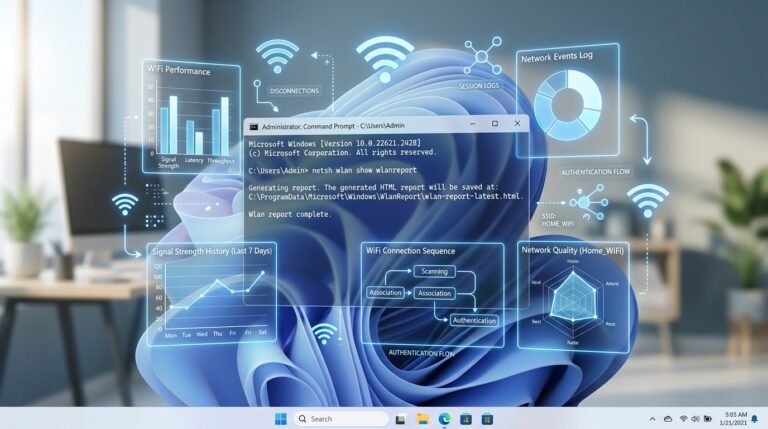
Use the built-in Resource Monitor and Performance Monitor tools to keep an eye on system performance. Press Win + R, type resmon and you can see what’s consuming your resources.
9. Uninstall Unused Programs
Regularly review your installed programs and uninstall those you no longer use. Go to Settings, then Apps to manage your applications.
10. Consider Hardware Upgrades
If your PC still feels sluggish after trying these steps, it may be time to consider hardware upgrades. More RAM or a faster SSD can significantly boost performance, but this may not be an option for everyone.
Bottom line: optimizing Windows 11 involves a mix of regular maintenance and smart settings adjustments. While some steps are straightforward, others may require a bit of technical know-how. If you’re unsure about a step, don’t hesitate to seek out further details or tutorials to guide you through the process.
These are the basics to get your system running smoother, but your mileage may vary depending on your specific hardware and usage. For tailored advice, consider reaching out to online communities or forums specific to your hardware.
Optimization is one of the most important aspects when it comes to working with my PC. It’s something I do on a daily basis and wholeheartedly recommend to others.

[…] Disabling Windows 11 services can improve performance, but it’s crucial to be cautious. Some services might be needed for specific functionalities. Your mileage may vary depending on your system’s use case, so research before making any changes. If you’re unsure, consider checking out our guide on optimizing Windows 11 for speed and performance. […]
[…] you’re looking for more tips on how to optimize your Windows setup, check out our guides on optimizing Windows 11 for speed and performance and disabling unnecessary Windows 11 […]
[…] This might seem obvious, but many users let unwanted software pile up. These aren’t just taking up space; some run background processes that consume RAM and CPU cycles, slowing everything down. Getting rid of them is a fundamental step to optimize Windows 11 for speed and performance. […]
[…] For a deeper dive into optimizing your PC, check out our guide on optimizing Windows 11 for speed and performance. […]