

Microsoft Office remains one of the most widely used productivity suites for working with documents, spreadsheets, and presentations. However, many websites offering downloads use modified installers, images from dubious sources, or activation tools that can compromise your computer’s security.
The good news is that there is a completely official way to download and install Office LTSC 2024 directly from Microsoft servers using the Office Deployment Tool. This way, you avoid third-party programs and ensure you install original, up-to-date, and unmodified files.
Software Cleanup
Before starting, it is very important to uninstall any version of Office installed on your computer, as well as any programs that depend on it.
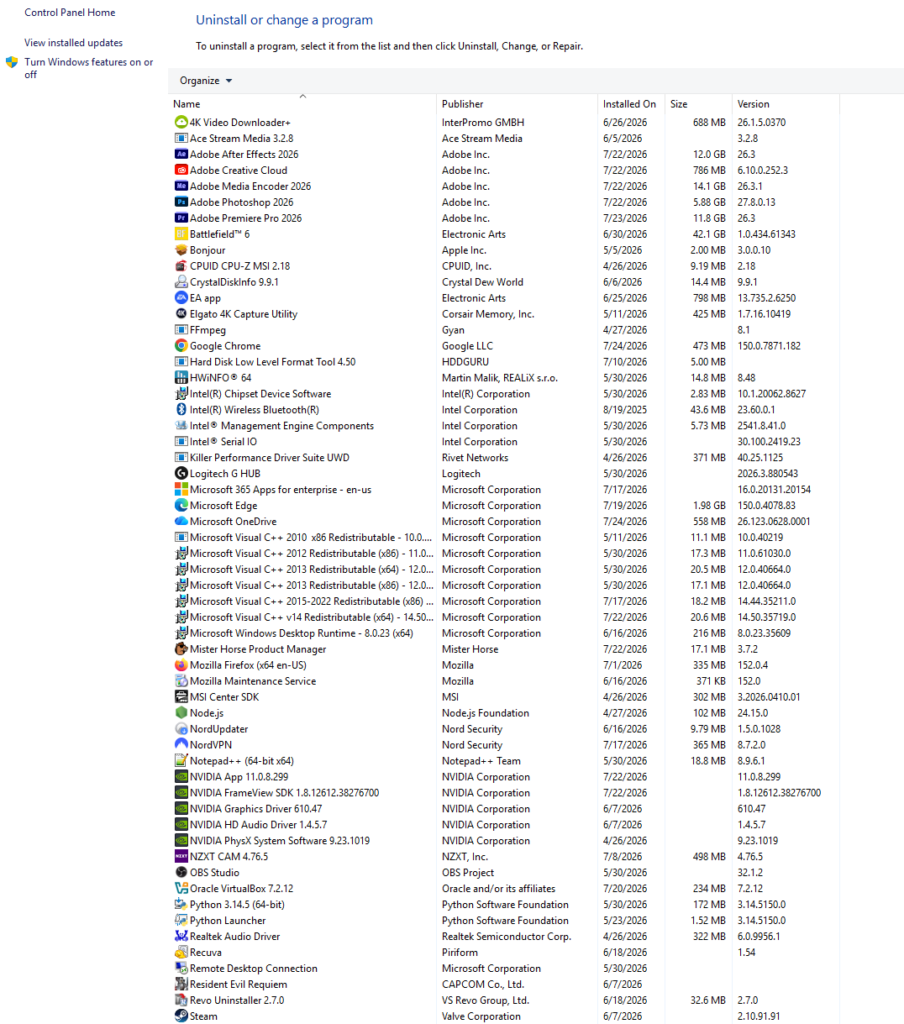
Once we’ve removed everything related to Office, we’ll delete the temporary files. To do this, press Windows key + R and type %temp%, and a window will open with the Windows temporary files.
%temp%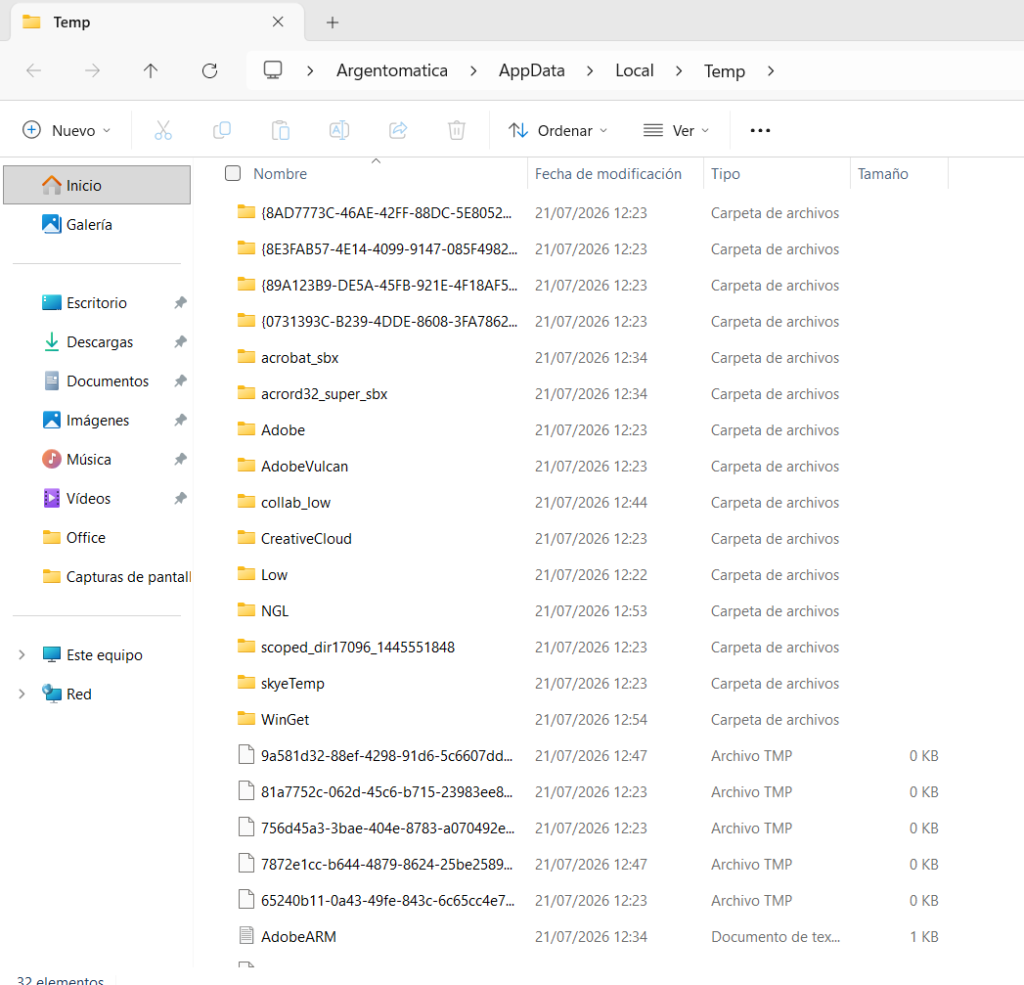
We select them all and delete them. If any don’t cause an error, it’s because a program depends on those files. If those programs have nothing to do with Office, there’s no need to delete them, although I also suggest that if you’re going to delete temporary files, you take the opportunity to delete them all.
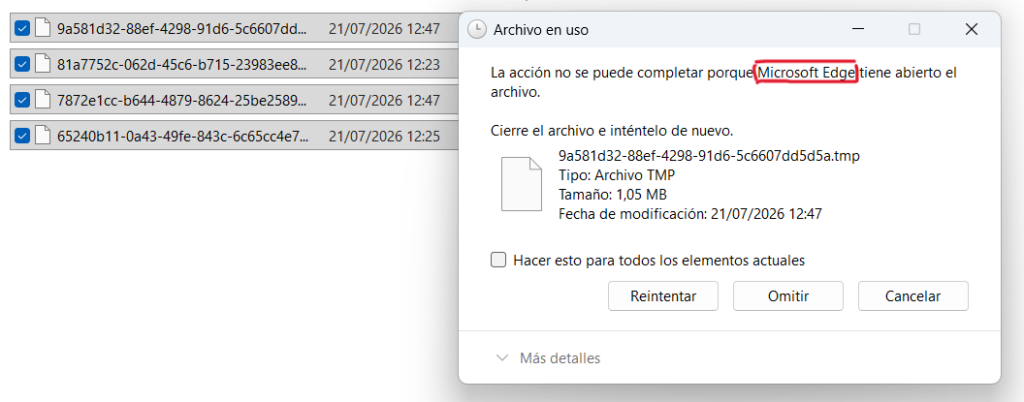
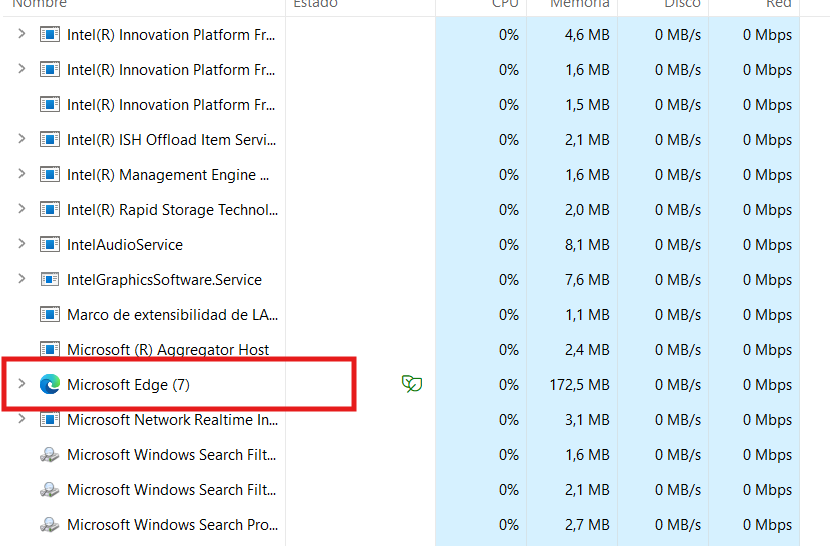
To close anything linked to that program, press alt+del and go to the task manager, select the app and click on end process.
Once everything is removed, we begin preparing the Office installation.
File Preparation
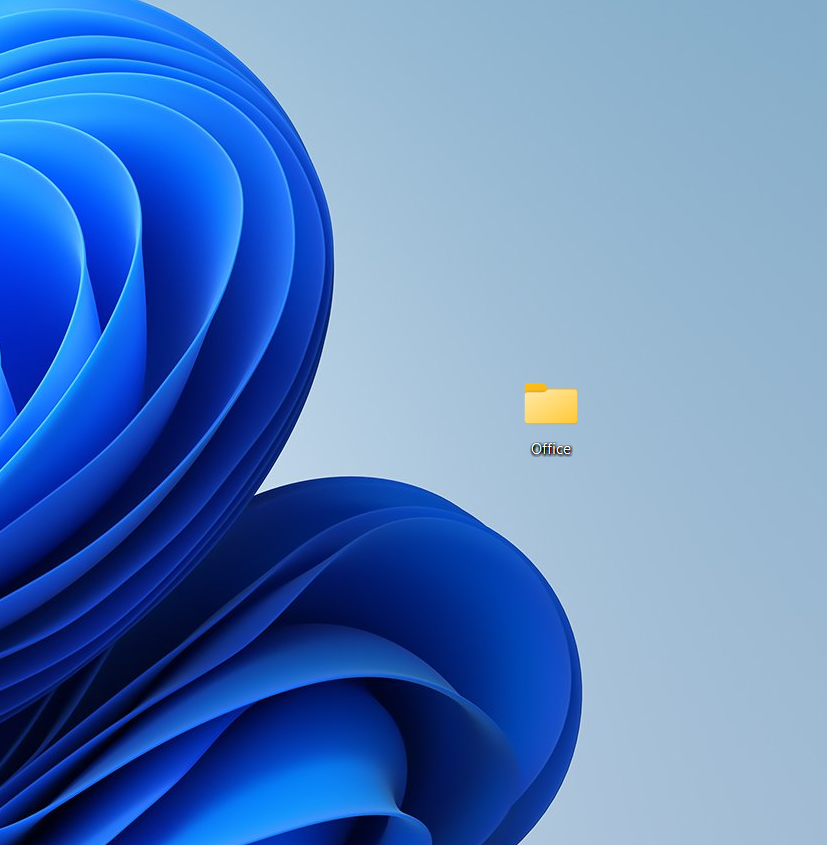
First, we’ll create a folder on the desktop and name it Office.
We access the official Office website through this link.
The first thing we’ll do is download the Office Deployment Tool.
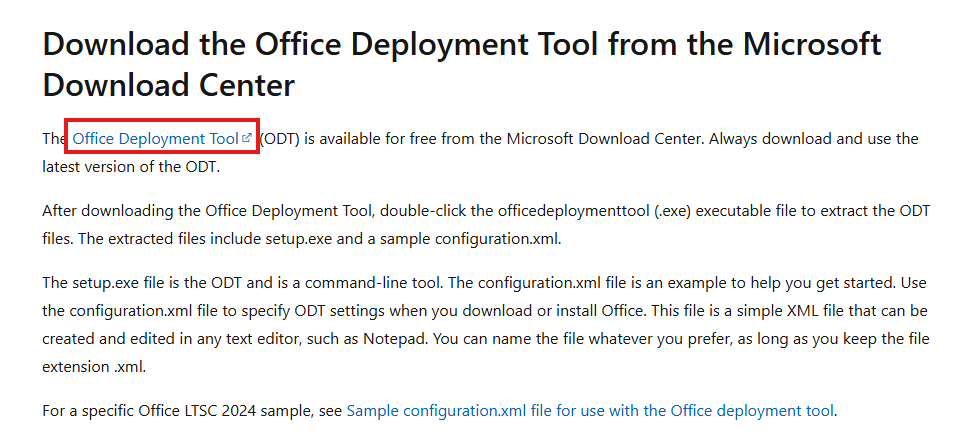
Clicking will take you to another page for the download.
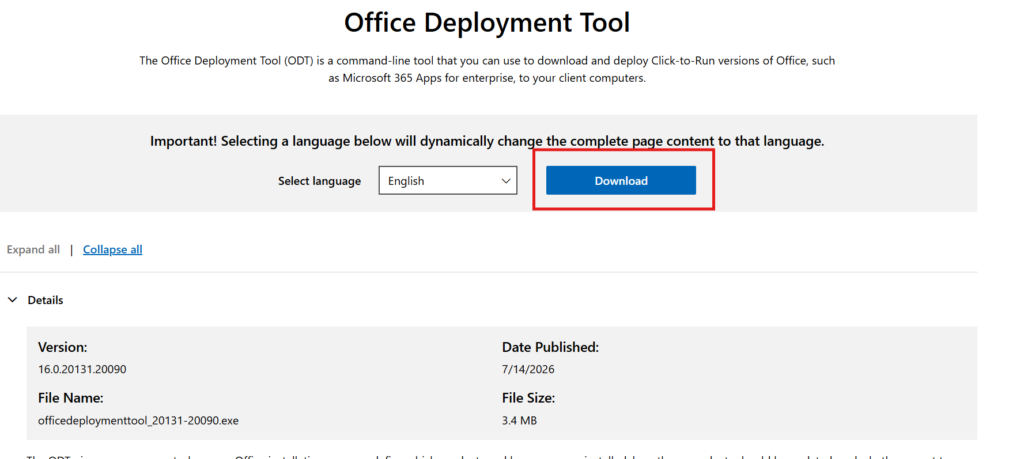
Click DOWNLOAD to start the download. Once downloaded, copy it to the Office folder created on your desktop and run it.
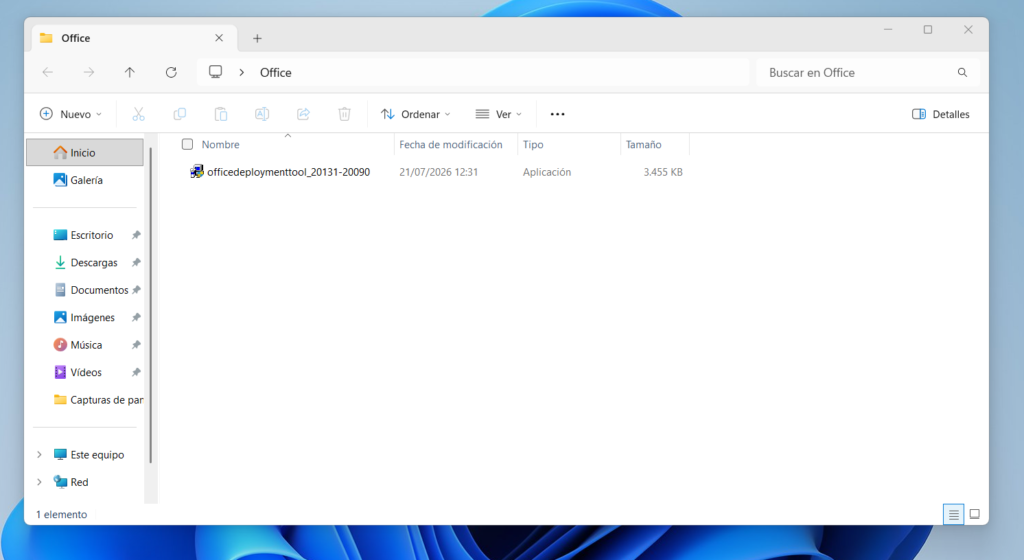
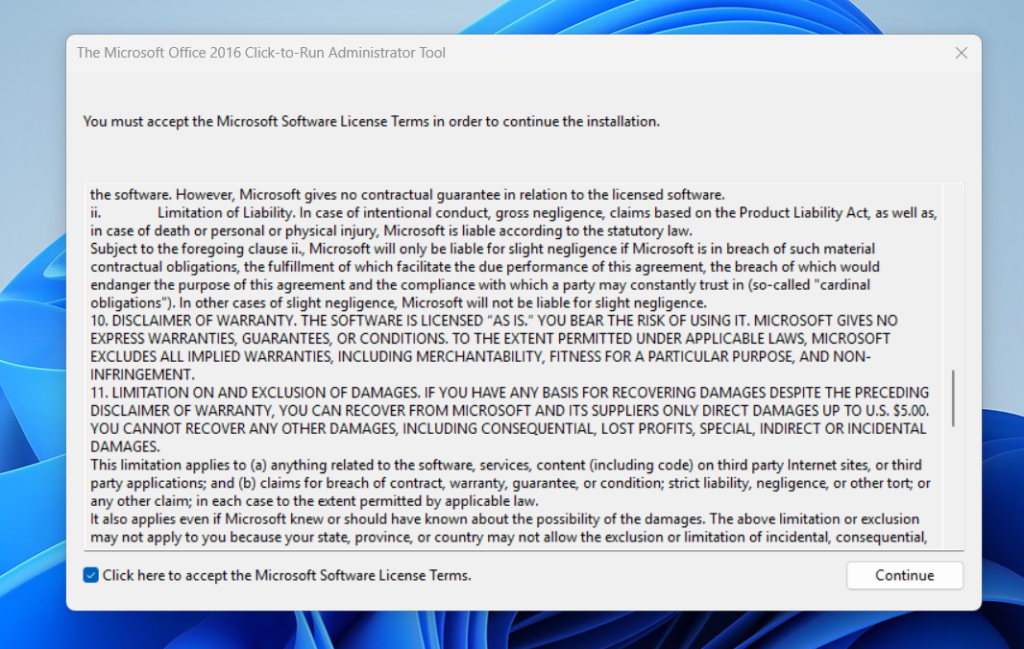
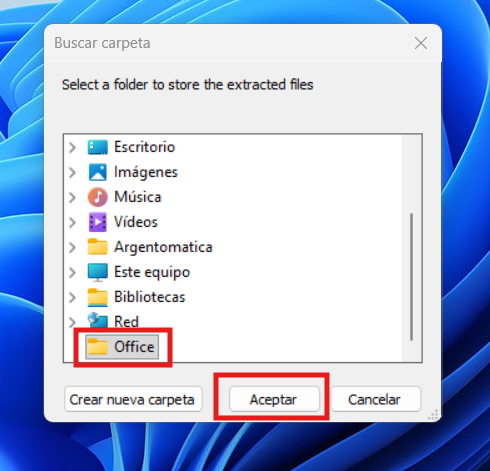
We select where we want the files from this archive to be extracted and choose the folder we created on the desktop.
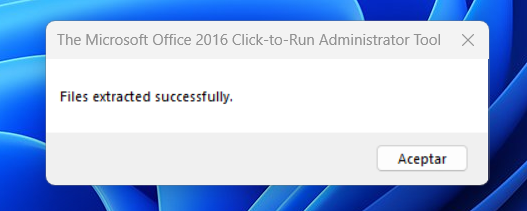
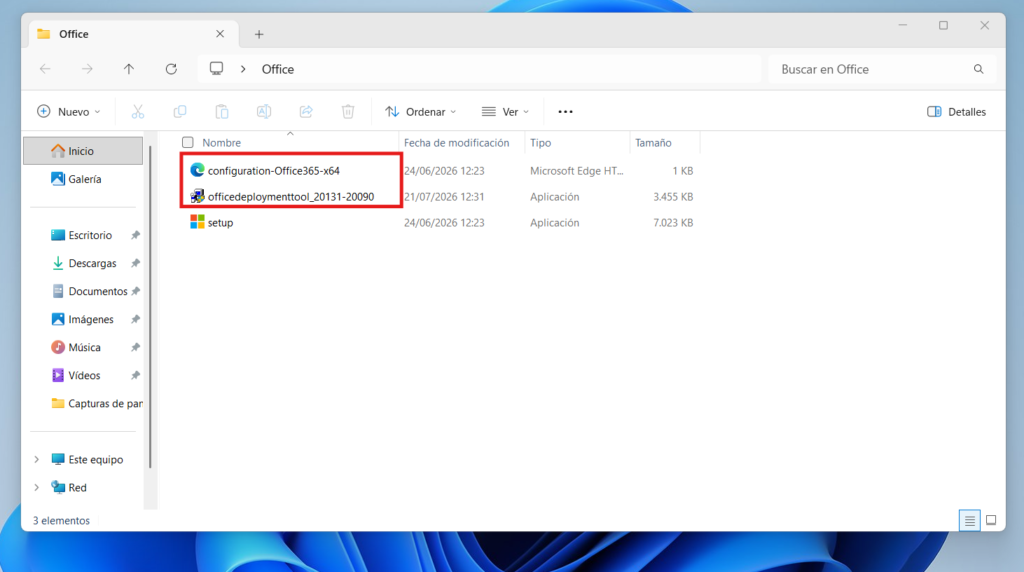
Once extracted, two more files will appear in the folder, which we will delete as indicated in the following image.
Preparing the configuration.xml file
Go back to the official website, scroll down a bit, and download the Office customization tool.
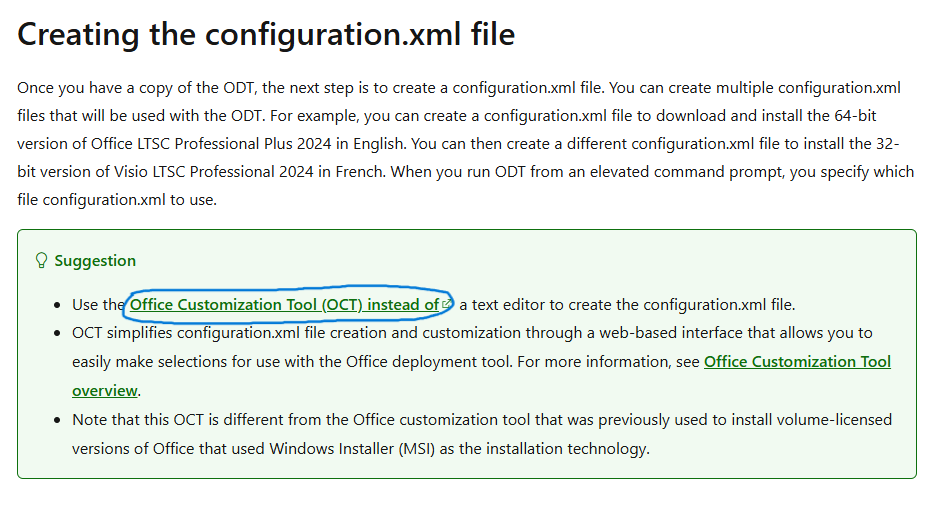
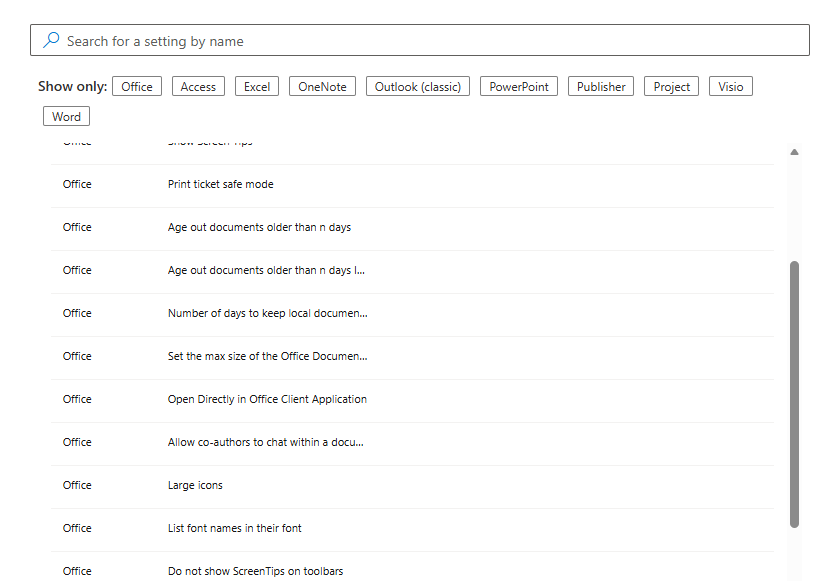
Opening it will take you to a page where you’ll specify the settings you want for the Office image that you’ll later download and install.
I’ve included my Office preferences from the version I used, but you can choose whichever option you prefer.
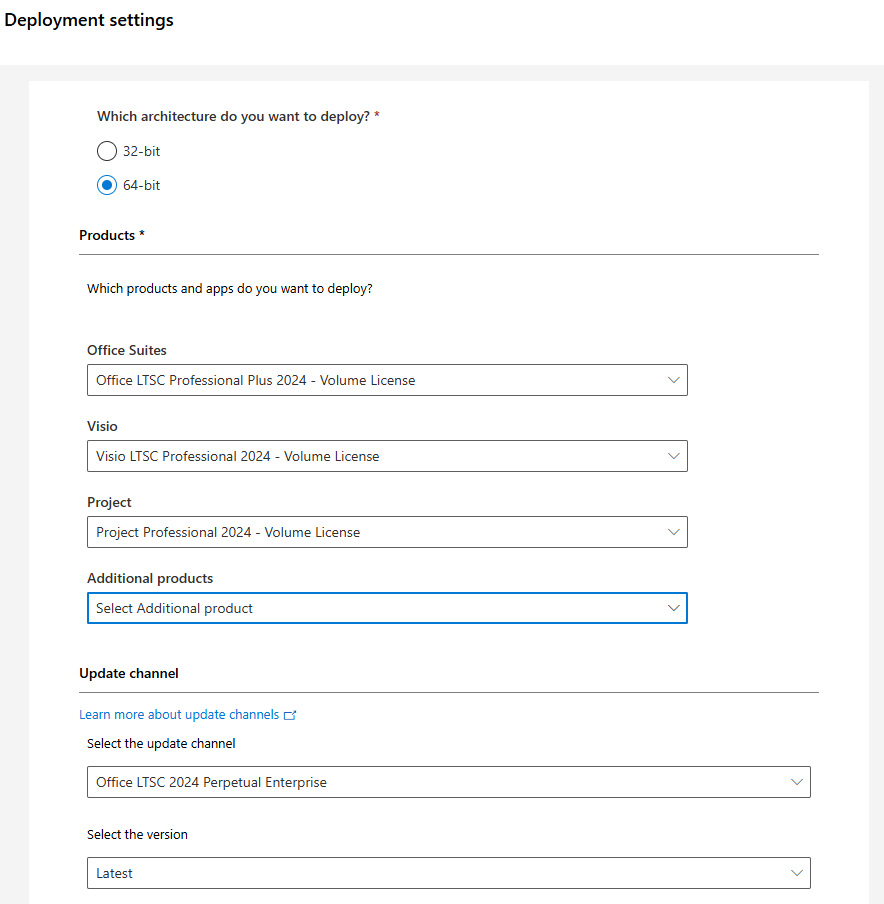
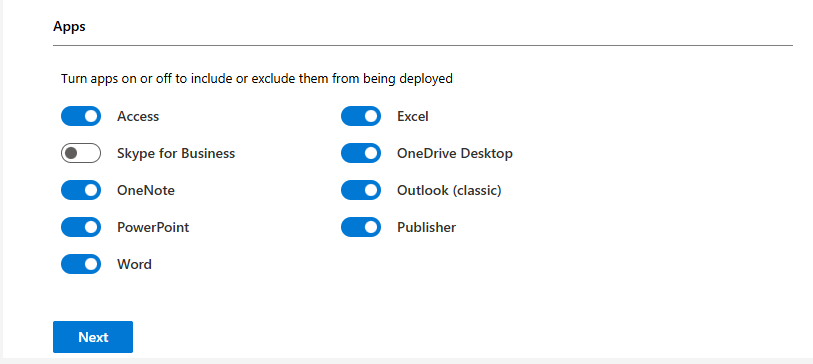
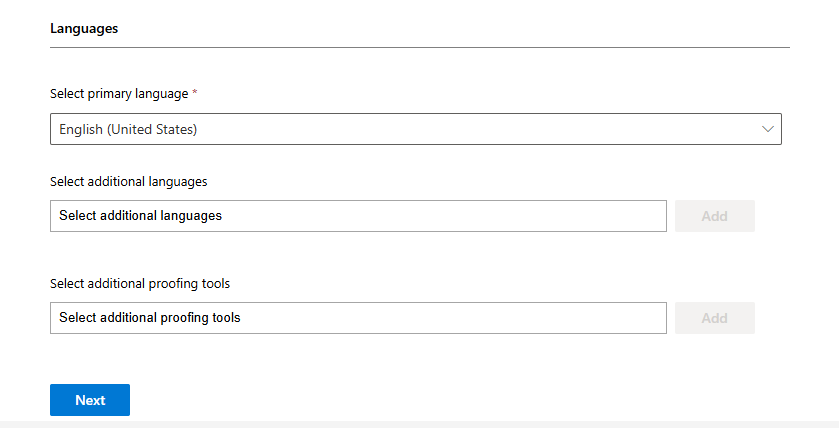
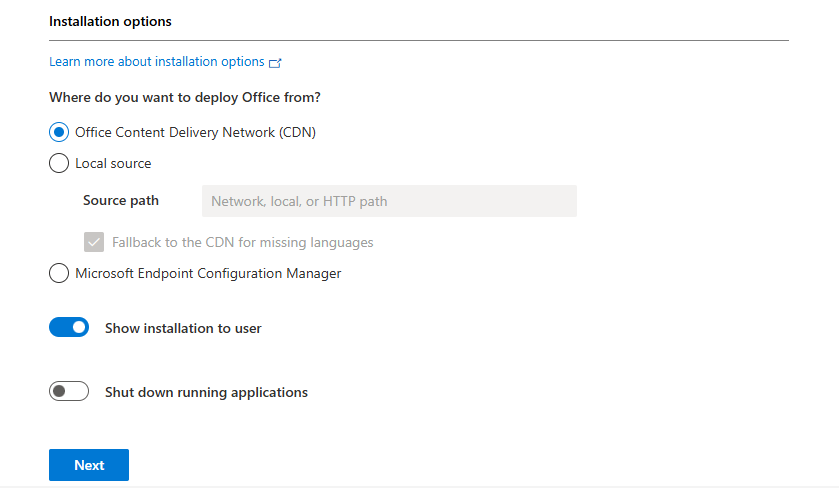
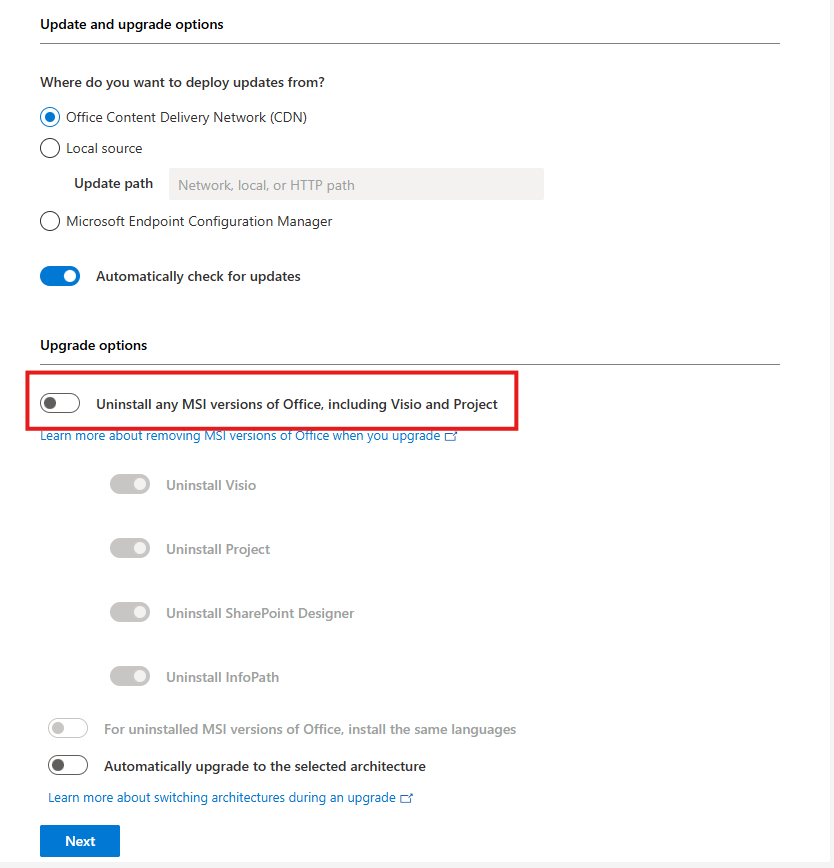
In the update options, it is very important that the first option is DISABLED.
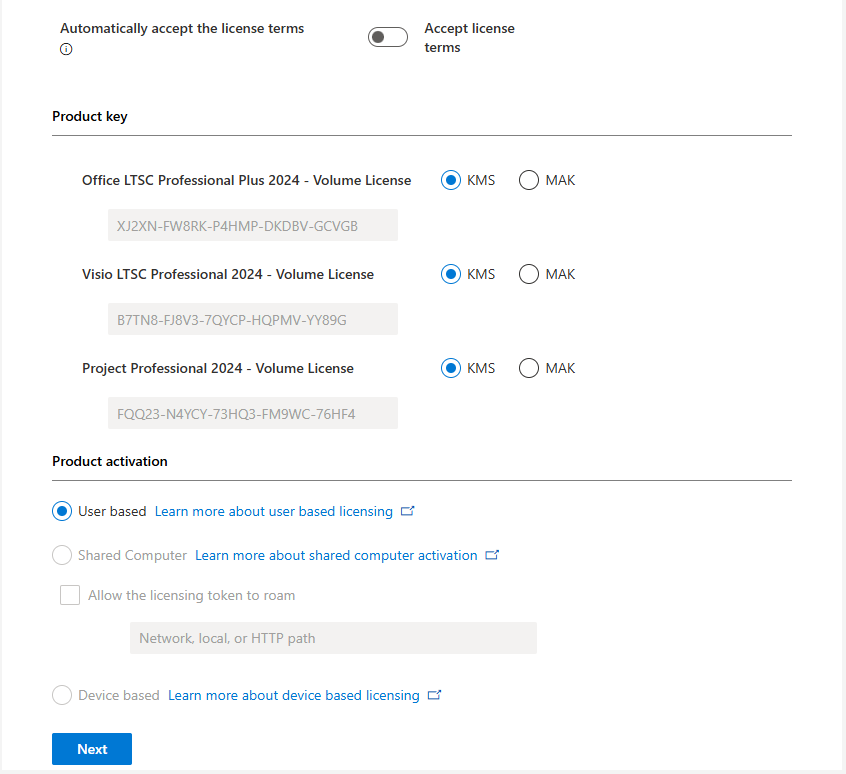
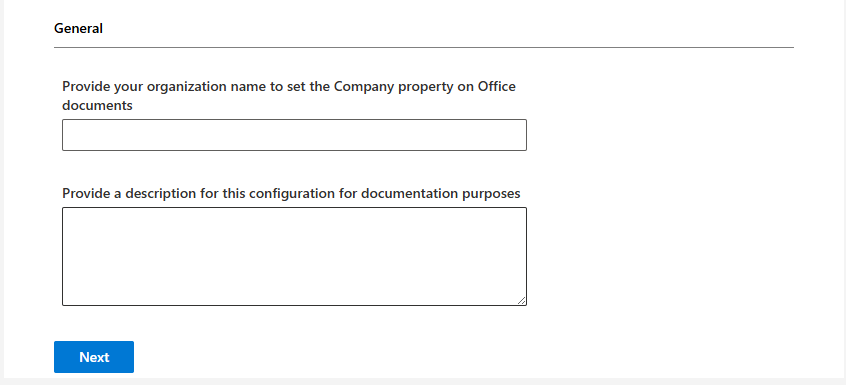
We click “next” on all the remaining settings that appear so that we see a summary of what we have selected (on the right side of the window).
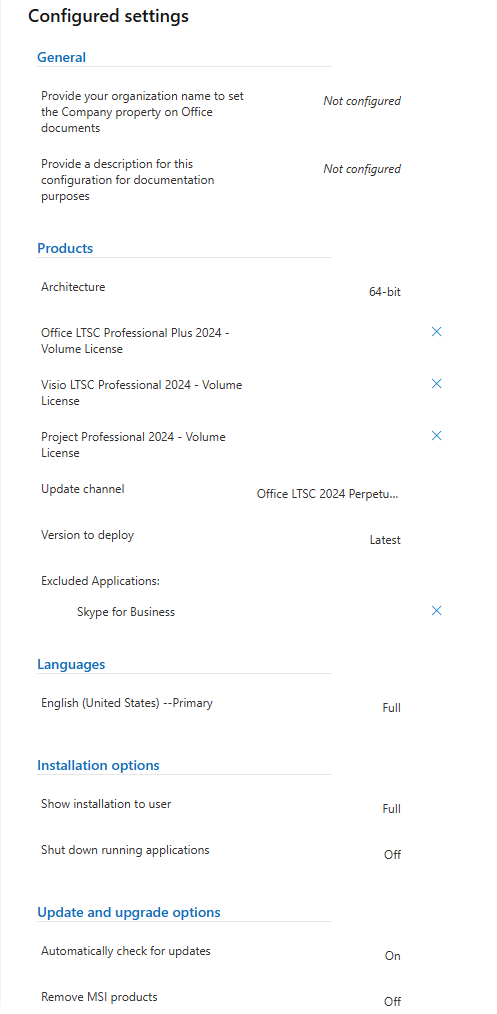
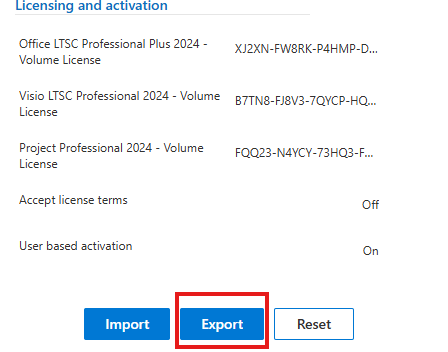
Once we verify that everything is okay, we click on EXPORT.
A pop-up window will appear, and we will select the OPEN XML OFFICE FORMATS option and accept.
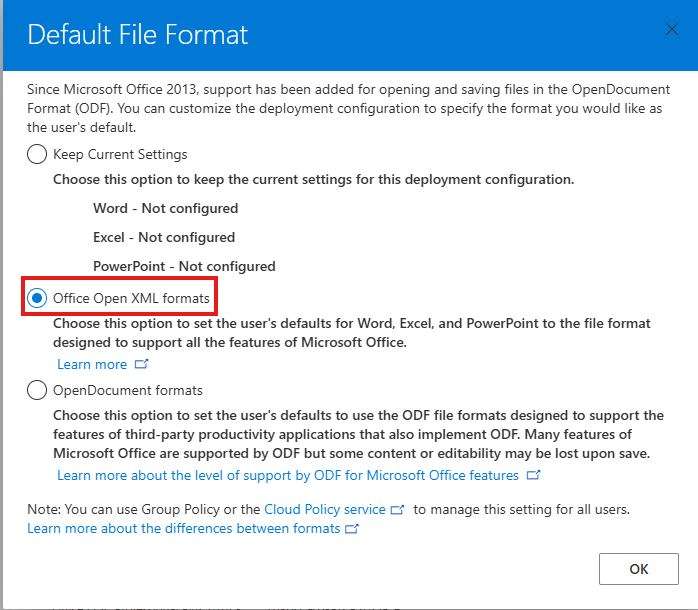
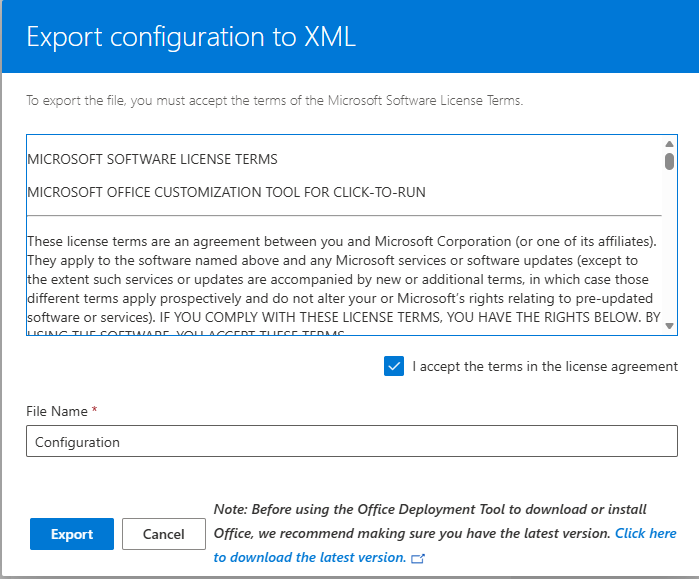
We export and the XML file will be downloaded, which we will have to copy to the Office folder created on the desktop.
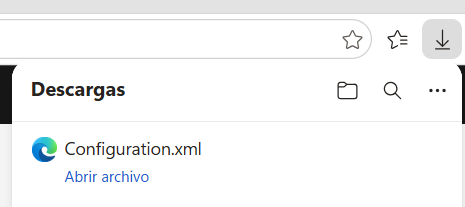
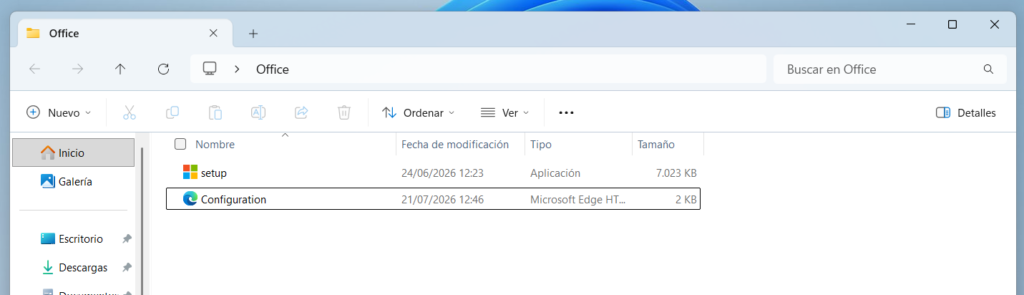
We run CMD as administrator and go to the folder created on the desktop with the following command (you modify it according to username, location and folder name)
C:\Usuarios\Argentomatica\Desktop\Office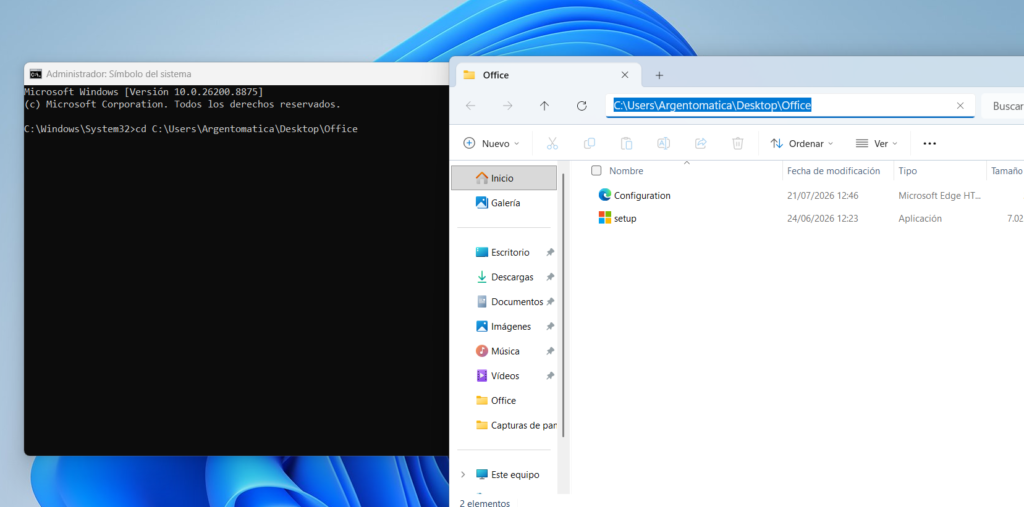
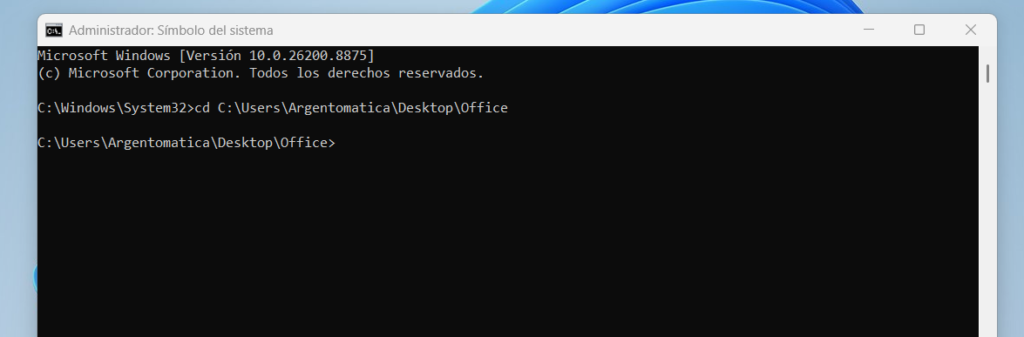
Once inside the Office folder from the CMD, we return to the website and scroll down a bit further to see INSTALL OFFICE LTSC 2024 USING THE OFFICE DEPLOYMENT TOOL
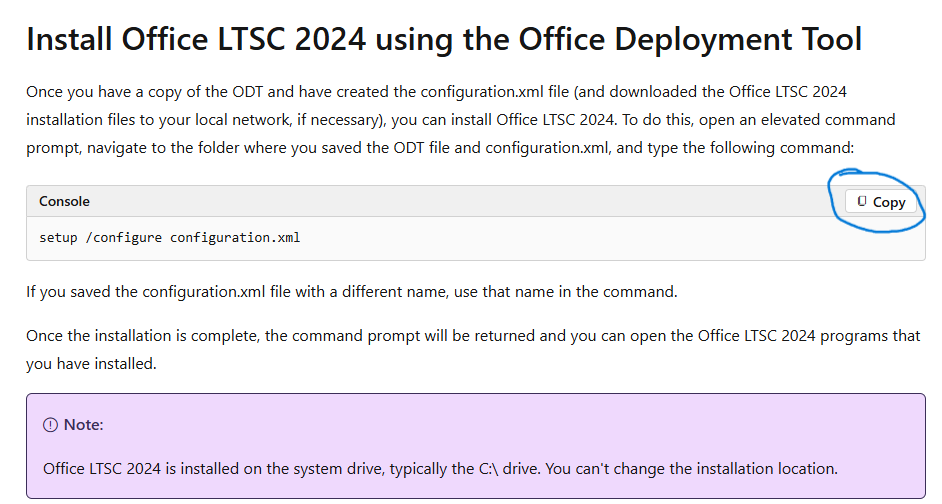
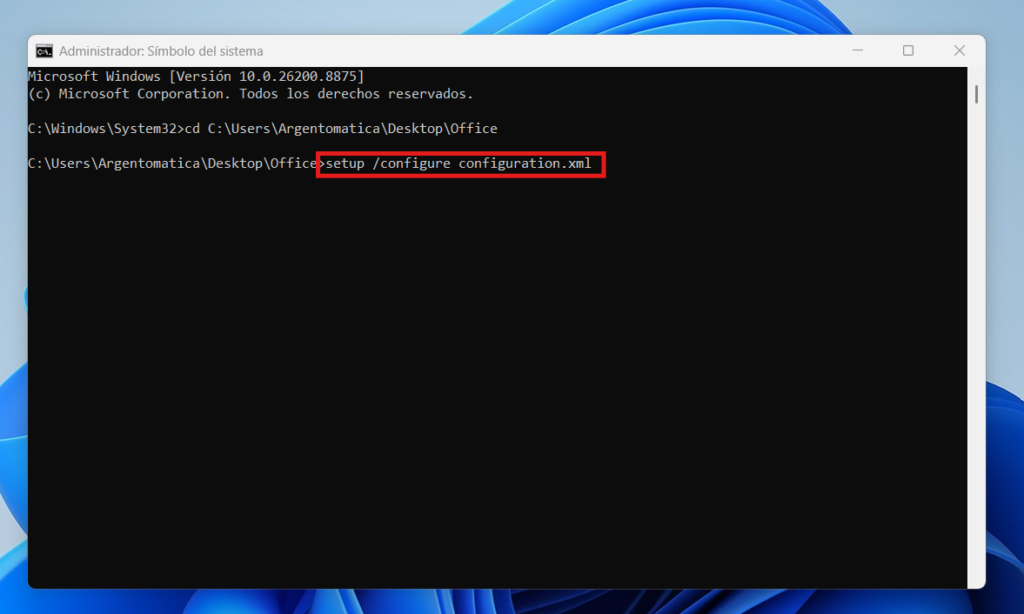
setup /configure configuration.xmlAnd we will copy this command and then paste it into the CMD.
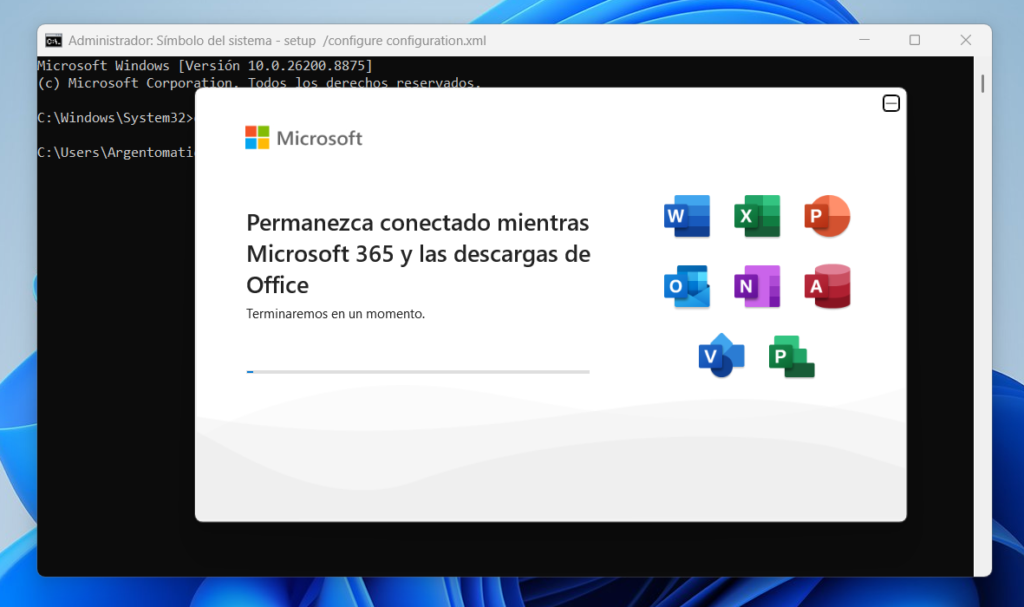
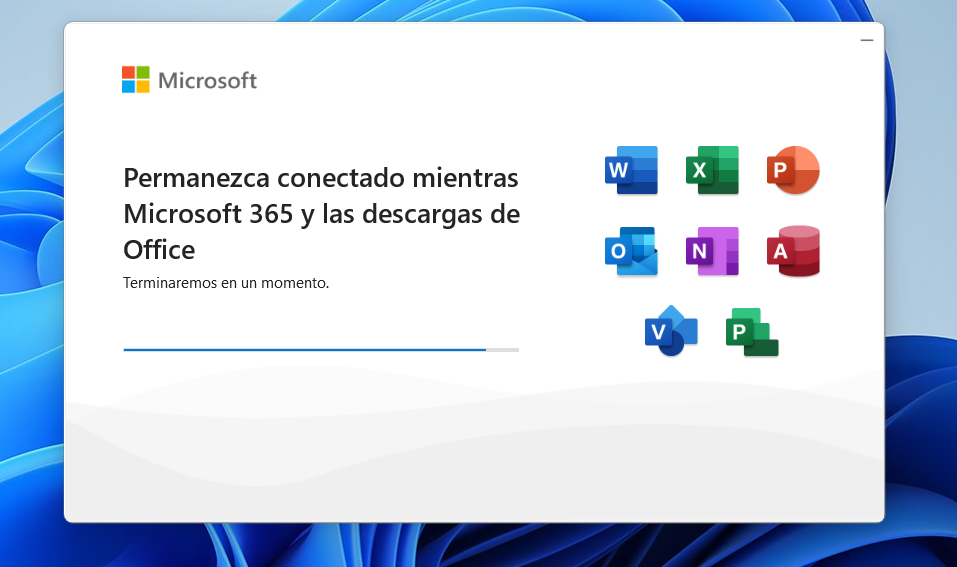
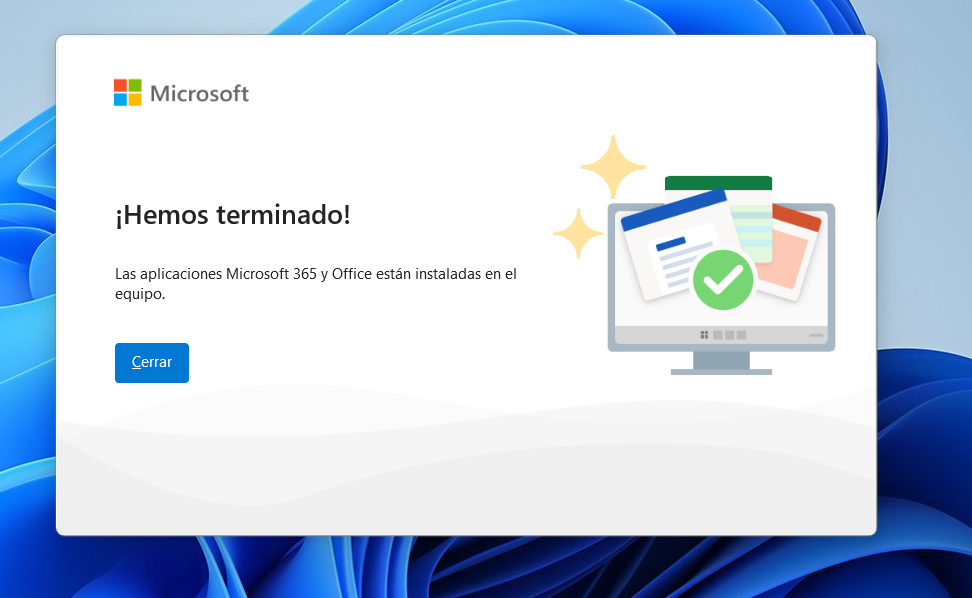
This way we can have our Office installed legally.
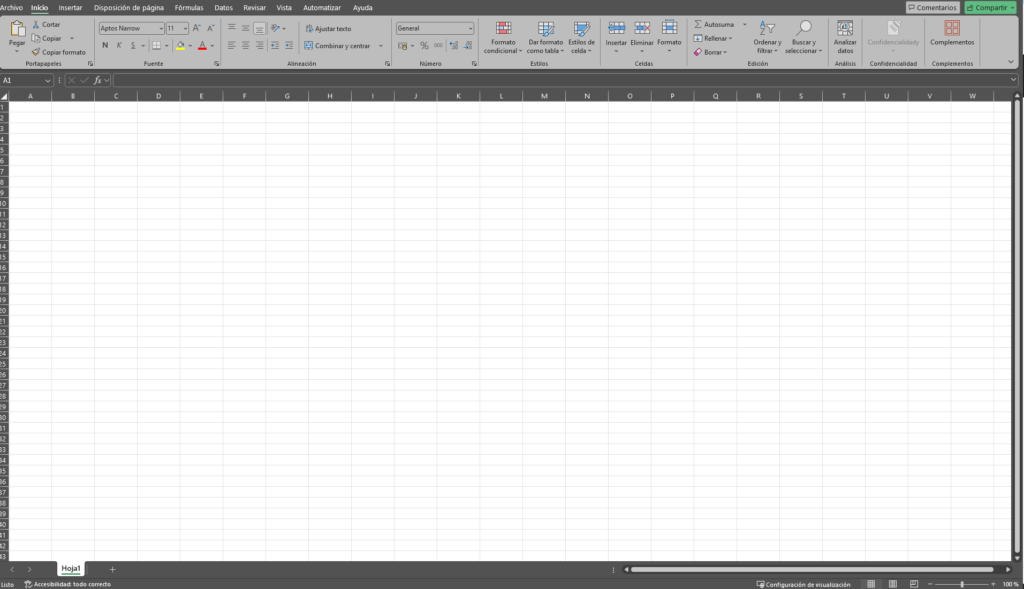
Si tenés alguna duda podes pasarte por mi video de youtube donde también lo explica paso a paso.